Setup guide
Connect Petasai to your Hermes.
Petasai talks to the Hermes Agent you run yourself. Here's how to get them talking, at home and away.
What you need
- An iPhone on iOS 26.1 or later.
- Hermes Agent by Nous Research, running on a computer you control: a Mac, PC, NAS, home server or VPS.
- Your iPhone and the server on the same network, or connected through a VPN.
1. Turn on the API server
Petasai uses Hermes's built-in API server (port 8642 by default). Add these to your Hermes .env file, or to your container's environment if you run Hermes in Docker:
API_SERVER_ENABLED=true
API_SERVER_KEY=a long random secret
API_SERVER_HOST=0.0.0.0- The key is what Petasai signs in with. Make it long and random, for example with
openssl rand -hex 32, and keep it private. API_SERVER_HOST=0.0.0.0lets other devices on your network reach the server. By default it only listens to the computer it runs on.
Restart Hermes so the settings take effect. To check, open http://your-server:8642/health in Safari on your iPhone. You should see "status": "ok".
2. Sign-in for the dashboard (optional)
Your worker bots, their Kanban boards and the files they hand each other live in the Hermes dashboard (port 9119). Petasai can sign in to it so you see your whole team. Without it, you can still chat with your main bot.
Give the dashboard a username and password, then start it so it's reachable on your network:
HERMES_DASHBOARD_BASIC_AUTH_USERNAME=you
HERMES_DASHBOARD_BASIC_AUTH_PASSWORD=a strong password

hermes dashboard --host 0.0.0.0
Petasai uses the dashboard's username-and-password sign-in.
3. Connect from your iPhone
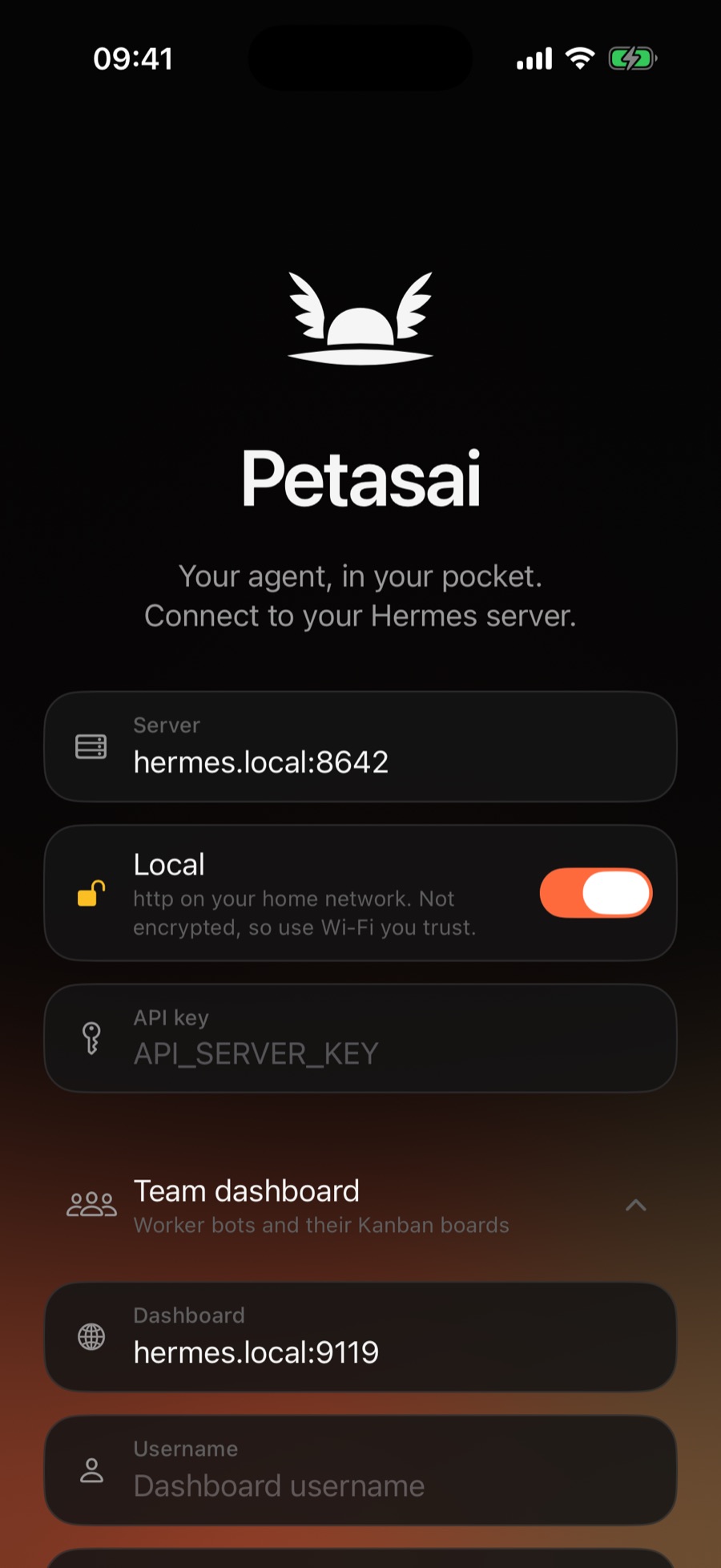
- Server: type your server's address and port, for example
hermes.local:8642or192.168.1.20:8642. No need forhttp://. - Local: leave it on to connect with plain
httpon your home network. Turn it off to usehttps(see below). - API key: the
API_SERVER_KEYyou set. - Team dashboard (optional): the address is filled in for you. Add the dashboard username and password.
- Tap Connect. The first time, iOS asks to let Petasai find devices on your local network. Allow it.
Petasai checks both sign-ins before saving anything. Your key and password are stored in the iPhone's Keychain, on that phone only. Settings › Sign Out of Hermes removes them, with any downloaded files and notifications.
Using Petasai away from home
Option A: a VPN (easiest)
Install Tailscale (or use WireGuard) on the server and your iPhone. Connect to the server's VPN address, such as 100.101.102.103:8642, with Local on. The VPN encrypts everything, and it works the same at home and away.
Option B: HTTPS
Put Hermes behind HTTPS with a proper certificate, for example with tailscale serve or a reverse proxy such as Caddy. Then turn Local off and use the https address. Self-signed certificates work too, once you install and trust your own certificate authority on the iPhone (Settings › General › About › Certificate Trust Settings).
iOS only allows plain http to addresses on your local network: .local names, names without a dot, and IP addresses. For any other name, Petasai shows a warning and you'll need https.
Chatting with your worker bots
Each worker bot is a Hermes profile with its own settings. To chat with one directly in Petasai, give it the same API key as your main bot:
hermes -p worker-name config set API_SERVER_KEY your-keyYou can always give any worker a task, even without this.
Troubleshooting
"This iPhone can't find the server"
iOS looks up .local names using Bonjour, so a name that only your router knows may not work. Try the server's IP address instead. Giving the server a fixed address in your router's settings helps. Also check that Petasai is allowed to use your local network: Settings › Privacy & Security › Local Network.
"Port 9119 is the Hermes dashboard"
The Server field needs the API server, usually on port 8642. The dashboard address goes in the Team dashboard section.
"Hermes rejected the API key"
Check the key matches API_SERVER_KEY on the server exactly, and that you restarted Hermes after changing it.
"This address needs https"
You're using a name that isn't on your local network with Local on. Use the IP address or VPN address, or set up HTTPS and turn Local off.
No response
Make sure your iPhone is on the same Wi‑Fi as the server (not a guest network) or connected to your VPN, and that Hermes is running.
Still stuck? Get in touch.